
Window Dressing (light)
Teal bulls and red bears on a cream canvas. Colorblind friendly.
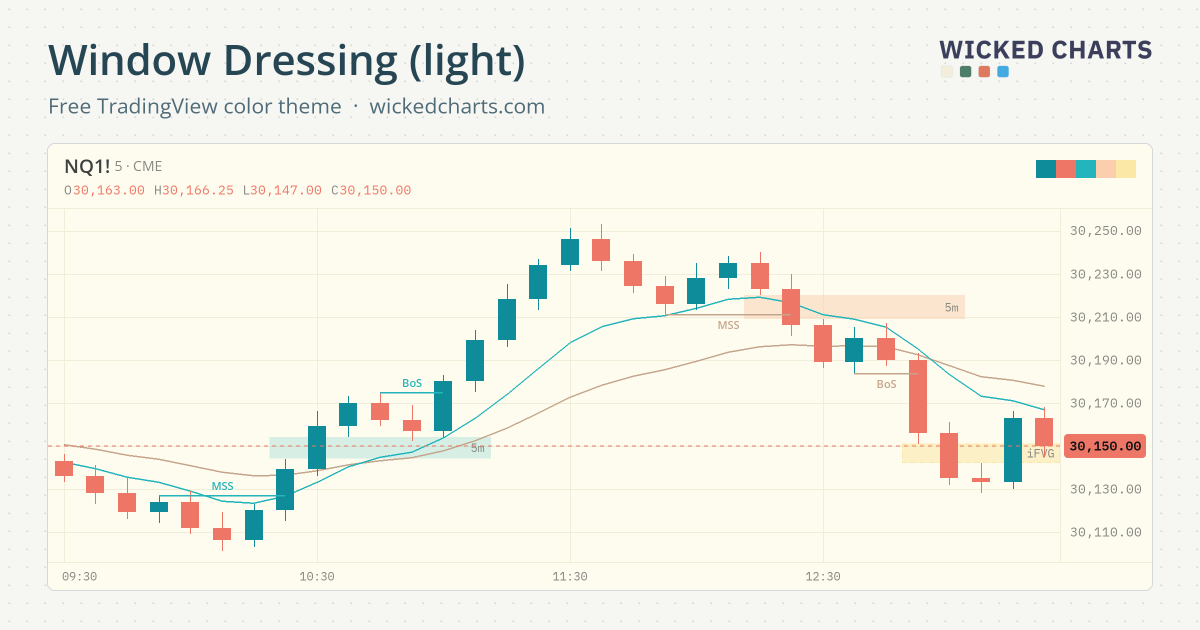
Shuffled from Window Dressing (light). Tap shuffle again for another mix, or reset to put it back. Copy and Share use the shuffled colors.
Borders, Detail, the light or dark version and this theme's tags are under More options. Copy follows the Borders switch. Want to tweak a color? Edit it in Design.
Apply it in TradingView
- 01
Open Chart settings
Right-click the chart and choose Settings, or use the gear icon at the top right.
- 02
Symbol tab
Set Body, Borders and Wick, up and down, using the candle colors here. With borders off, use the body colors for all three.
- 03
Canvas, Scales and lines
On Canvas, set Background to a solid color, the Grid lines color and the Text color (under Scales). On Scales and lines, set Symbol (Value, line) to the Symbol value and line color.
- 04
Indicators and template
Paste the FVG colors and opacities into your FVG indicator, and the Detail colors into your market structure and EMA indicators (9 and 21 EMA). Then Template, Save as, so it's one click next time.
Step by step, with screenshots: How to change chart colors in TradingView.
About Window Dressing (light)
Window Dressing is a light TradingView color theme named after fund managers tidying up their holdings before quarter end. Teal bulls and red bears on a cream canvas. Bull and bear candles stay clearly different for the common types of color blindness, so you can read direction at a glance. A light canvas reads well in daylight and looks clean in trade journals. Matching FVG colors keep imbalances in the same palette as the candles. Prefer a dark canvas? Try Window Dressing (dark), the same candles on a night background.